How to get to Desktop could mean a lot of things. You might want to minimize everything and go to the Desktop or could be the Desktop, which is missing the icons or maybe the Desktop as entirely disappeared. In this post, we answer these types of questions so you can get to Desktop on Windows as it was earlier.
In this post we discuss multiple ways to get to the Windows 10 desktop and also answer some popular questions asked by some of the users when they faced a problem with the Windows Desktop:
I am sure if you been using Windows for some time, most of them are known, but if you are new, I am sure you will find something new.
1] Use Keyboard ShortcutTo minimize everything, and look at the files and icons on the Desktop, press Win+D. The only drawback of this method is you will have to open all windows one by one.
2] Use Mouse to Show desktopMove your mouse cursor to the extreme right of the Taskbar, and click. There is a small vertical bar called "Show desktop," which, when clicked, minimizes all windows to get to the Desktop. When you click on it, it will restore the windows. You can also call this as Aero Peek, which lets you peek into the Desktop.
3] Windows Desktop is missingIf you cannot see the Desktop and even the Taskbar, you need to restart File Explorer.
After this, you can get Desktop back to normal on Windows 10.
4] Windows Desktop icon is missingIf you can access your Desktop and see the wallpaper, but cannot see the icons, then here is what you should do to bring them back.
If you had a desktop icon(s), it would reveal itself. If not, then everything is normal.
5] How to get back the classic Desktop in Windows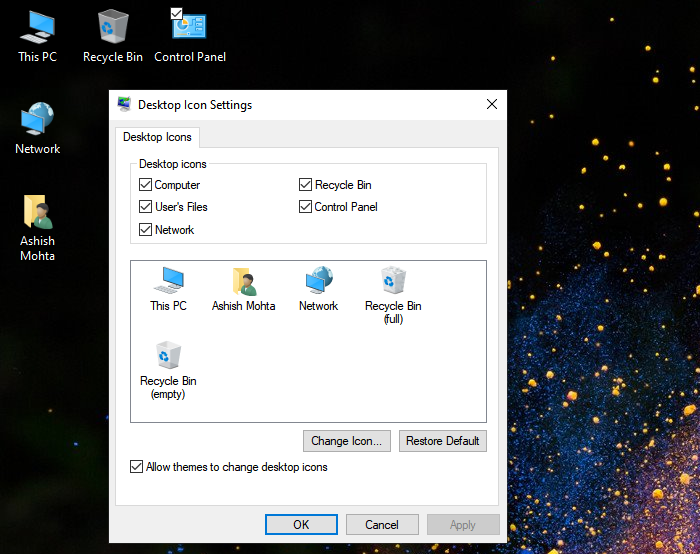
If you liked how Windows 7 Desktop was arranged, i.e., Recycle bin, My Computer, Network place icons, then here is what you can do to bring back the classic style desktop.
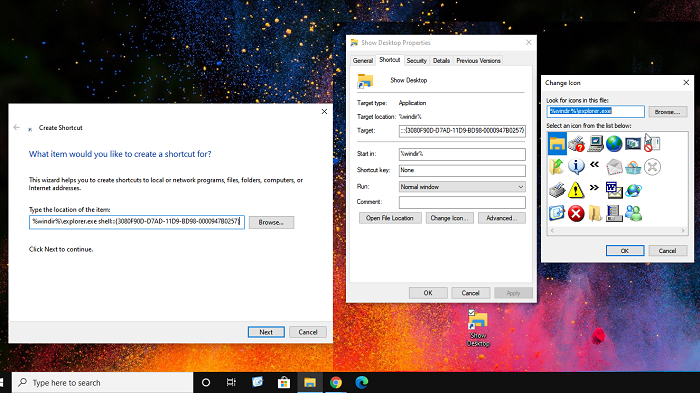
Windows XP used to have a show desktop icon that performed the same action, which Win + D keyboard shortcut does.
Create a new shortcut, and when it asks for the path, add the following
%windir%\explorer.exe shell:::{3080F90D-D7AD-11D9-BD98-0000947B0257}Name it as Show Desktop
Then change the icon of the shortcut using Properties of the shortcut
Done that, drag it to Taskbar, and pin it.
Next time you click on it, it will show Desktop. If you click it again, it will open all the minimized windows.
It works exactly as the Taskbar method, but it is easy to use.
7] How to get to the Desktop in tablet modeWhen using Tablet mode, the Start menu expands and hides the Desktop in the rear. In this case, if you want to access the Desktop, here is what you need to do.
There is no way to disable Start Menu if you are in tablet mode. So to access the Desktop, you can either create a Show Desktop icon in the Taskbar or you can open File Explorer, and then access the Desktop folder. So it's not going to like the Desktop, but it's going to be decent enough to access the files open the Desktop.
I hope the guide was easy to follow.
Komentar
Posting Komentar